
ChatGPT has become seamlessly integrated into everyday workflows, offering ideas, debugging assistance, and rapid answers. But what information is ChatGPT silently compiling about you in the background—and how much control do you actually have over deleting it?
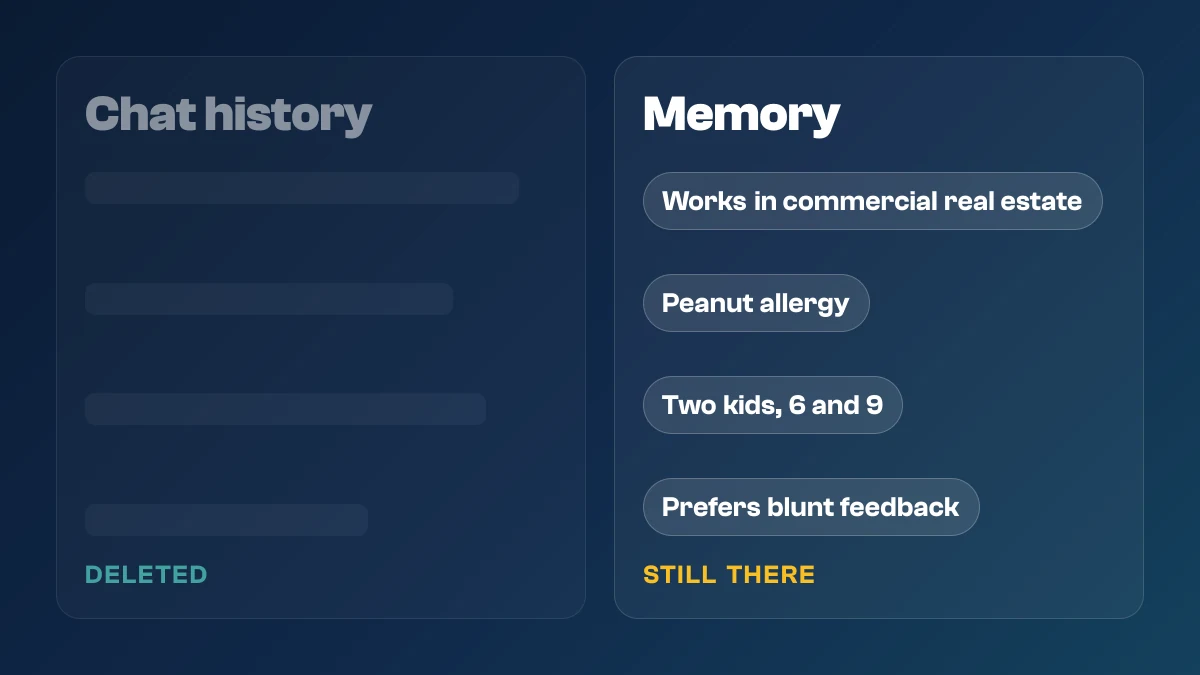
ChatGPT tracks two distinct layers of user data: Chat History and Memory. Understanding the difference is critical, as deleting one does not automatically remove the other.
Chat History vs. Memory: What's the Difference?
- Chat History: The log of raw conversations between you and ChatGPT. OpenAI uses this data to provide conversational continuity and, by default, to train future AI models.
- Memory: The persistent profile of facts, preferences, and personal context that ChatGPT automatically extracts across your chats over time (e.g., your job title, coding preferences, or dietary requirements).
Crucial Distinction
Chat history and memory are stored independently. Deleting a conversation does not erase the memories ChatGPT extracted from that conversation, and wiping your memory summary does not delete your past chat transcripts. Both must be managed separately.
How to Delete and Manage ChatGPT Memory
If you want to clear or edit the personal profile ChatGPT has built about you:
- Open Settings: Log into ChatGPT, click your profile icon in the bottom-left corner, and select Settings.
- Open Personalization: Navigate to the Personalization tab and locate the Memory section.
- Review Stored Context: Select Manage under Memory Summary to view the active list of details ChatGPT has recorded about you.
- Edit or Wipe:
- To delete individual facts, select the item and choose Make a correction or delete it.
- To clear everything at once, click the three-dots menu (
•••) and select Delete and turn off memory.
Data Deletion Timelines
When you delete memory entries or chat histories, OpenAI removes them from your active profile immediately. However, OpenAI retains logs on its servers for up to 30 days for security, trust and safety auditing, and abuse-monitoring purposes before permanent deletion occurs.
How to Delete Past Chats
To clear your raw conversation logs:
- Open Settings: Click your profile icon and open Settings.
- Go to Data Controls: Select the Data Controls tab.
- Delete All Conversations: Under the Delete All Chats section, select Delete All and confirm.
(To selectively delete a single thread, hover over the conversation title in the left sidebar, click the three-dots icon •••, and select Delete.)
Restricting Model Training and Marketing Privacy
Beyond deleting historical records, you can limit how OpenAI collects and uses your ongoing activity:
- Disable Model Training: Under Settings > Data Controls, toggle off "Improve the model for everyone" to prevent your future prompts from being used to train OpenAI's base models.
- Ad and Marketing Controls: Under Data Controls > Ads & Marketing Privacy, disable personalized marketing measurement and targeted ad tracking.
- Use Temporary Chats: For sensitive queries, start a Temporary Chat (via the model selector menu). Temporary chats do not save to your history, do not generate new memories, and are not used for model training.
Safety and Account Controls
For shared or family setups, OpenAI provides additional account-level guardrails:
- Content Sensitivity Filters: Adjust content filtering toggles in the Safety tab to restrict mature or sensitive model responses.
- Parental Controls & Trusted Contacts: Configure permissions and notifications for managed accounts to safeguard against inappropriate prompts.
Key Takeaways
AI assistants offer massive productivity gains, but persistent context comes at the cost of personal data aggregation. Routine maintenance: clearing stale memories, disabling model training on proprietary workflows, and relying on temporary chats for sensitive information ensures you get the benefits of AI without building an unmanaged digital footprint.